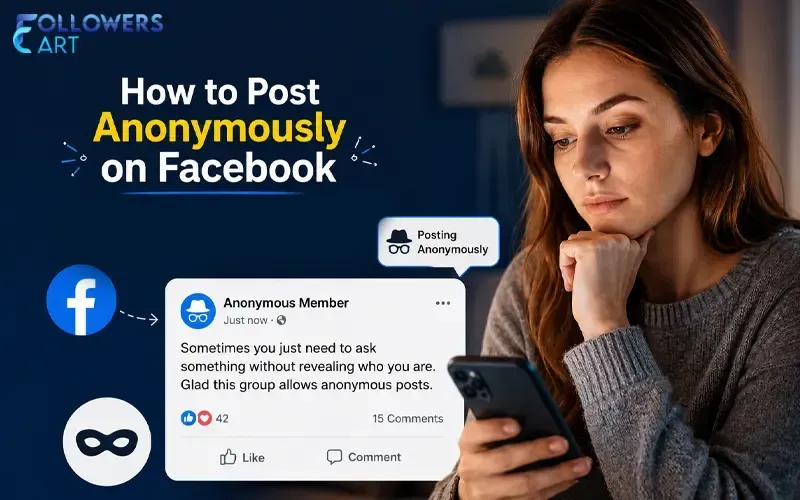
How to Post Anonymously on Facebook: A Step by Step Quick Guide
Have you ever typed a question on Facebook but backed out because you couldn’t bring yourself to post it? You’ve probably asked about some health issue, a failed relationship, some financial trouble, or a dilemma with your kids, but you were too ashamed to use your identity. If you have done so, you are not alone.
There is a dedicated feature on Facebook for that very purpose. This tutorial will explain how to post anonymously on Facebook, where you can do it, and what happens once you hit “Post.” No unnecessary information, no old screenshots, just how it’s done now.
Why People Want to Post Anonymously on Facebook
Think about the last time you held back from posting something because you were worried about who might see it. A coworker in a parenting group. A judgmental cousin in a hobby group. Your boss, somehow, everywhere.
Online self-disclosure research shows that people tend to disclose themselves more openly if they perceive that they can do so without compromising their identity. It is exactly the problem that Facebook communities attempt to solve. Whether it's a new parent community, a mental health community, or a local community, it will perform better if its members can feel safe enough to speak out openly.
Can You Post Anonymously on Facebook?
The answer is yes, but sort of, and you need to know where the limits lie before you put your faith in it. Facebook does not provide complete anonymity with its services. There is a real identity attached to each account under Meta's policies.
What Facebook does offer is an anonymous posting on Facebook option built specifically for Facebook Groups. It's not available on your personal timeline, in Facebook Marketplace listings, or on a public Facebook Page. This tool operates solely within groups, provided that the administrator of that group has enabled it.
That being said, if you have been trying to find a way to remain incognito throughout all of Facebook, the truth is that there isn’t such an option. However, within the proper group, the anonymous post Facebook function will do exactly what you want – namely, keep your identity hidden from other members.
Finally, if you would like to know how the anonymity guidelines vary on the rest of the platform, our guide to Facebook Marketplace covers what buyers and sellers can and can't hide about themselves.
How Facebook's Anonymous Posting Feature Actually Works
Before you create your first Facebook anonymous post, it helps to know what this feature protects and what it doesn't. When you post anonymously in a group:
-
Regular members see "Anonymous Member" or "Group Participant" instead of your name.
-
Group admins and moderators can still see exactly who posted.
-
Facebook's own systems retain your identity for community guidelines enforcement.
-
You can only reply anonymously within the comments on your own anonymous post; you cannot comment anonymously on someone else's post.
This matters because it changes the calculation. The feature isn't about disappearing completely; it's about removing your name from public view among fellow members while keeping a layer of accountability intact so admins can act on anything that breaks Facebook community guidelines.
How to Post Anonymously in a Facebook Group (Desktop)
Here's exactly how you can adjust the settings on the Facebook desktop site, step by step:
-
Log in to your Facebook account and go to the particular group where you want to make an anonymous post.
-
Click on the “Write something…” section at the top of the group’s discussion wall.
-
Below the text box, locate a button named “Anonymous Post”. It will not be there if the group administrator hasn’t enabled the option.
-
Click on the “Anonymous Post” and then click on the “Create Anonymous Post.”
-
Type your message into the text box.
-
Click "Submit."
If the group requires admin approval, your post will sit in a review queue briefly before it shows up in the feed as "Anonymous Member." This short delay to post anonymously in Facebook groups is normal and simply lets a moderator confirm the submission follows the group's rules. If you tend to reuse the same phrasing across posts, our guide to the Facebook clipboard tool can save you time when drafting anonymous posts.
How to Make an Anonymous Post on Facebook (Mobile App)
If you prefer your phone for posting, the Facebook app makes this just as simple:
-
Open the Facebook app and go to your group.
-
Tap the post composer box.
-
Look for a checkbox or toggle that says " post anonymously" and tap it.
-
Write your post. You'll notice "Posting Anonymously" displayed at the top, confirming the setting is active.
-
Tap "Post" in the top right corner.
Why Can't I Post Anonymously on Facebook? Common Reasons
If you've looked for the anonymous option and come up empty, here's why you can't post anonymously on Facebook usually comes down to one of these:
-
The group admin has not enabled anonymous participation in the group's settings.
-
You're viewing a public Page or your personal timeline, where the feature doesn't exist at all.
-
You're not yet a confirmed member of the group; visitors can't use member-only features.
-
The Facebook app needs updating, since older versions may not display the toggle.
If the option is missing, your best move is simply to ask the group administrator directly. Most admins are happy to enable it once they know members want it, especially in groups covering sensitive topics.
How to Enable Anonymous Posting on Facebook (For Group Admins)
If you have a group and would like to allow your members to do this, follow these steps to enable anonymous posting in Facebook groups:
-
Click on your group, then click on "Group Settings" on the left side of the screen.
-
Go down to "Manage Discussion" and look for "Anonymous Participation."
-
Click the pencil icon and select "On."
Once enabled, every eligible member will see the anonymous option appear in their post composer. You can switch it off again the same way if it's no longer needed.
Anonymous Facebook Group Post: Public vs. Private Groups
An anonymous Facebook group post behaves a little differently depending on the group's visibility settings. In private Facebook groups, no one but the approved individuals gets to view the posting, whether they are anonymous or not, which creates a level of security even without the need for anonymity.
However, in public Facebook groups, anyone can view the posting regardless of being a member of the group or not, though the identity of the poster remains unknown because of the Facebook settings, which control the functionality of the post-anonymity feature. If the topic is genuinely sensitive, a private Facebook community is usually the safer home for it.
How to Anonymously Ask a Question on Facebook
The area where this tool is used extensively is support and advice groups. In case you wonder about the procedure for posting an anonymous question on Facebook, it is basically the same as a normal anonymous post.
Access the group, switch on the anonymous button, and ask the question like you would ask a close friend. As the anonymous posting Facebook groups do not include any names and pictures, the members will answer your question itself rather than to who's asking, and hence give honest answers.
Anonymous Posts in Facebook Communities: What to Keep in Mind
Anonymous posts in Facebook communities work best when a few ground rules are respected. Even with your name hidden, your content still needs to follow Facebook community guidelines, and repeated violations can lead to warnings or restrictions on your account, not just the post being removed. Anonymity protects your identity from other members, not your responsibility for what you post.
It's also worth remembering that Facebook permissions and Facebook account privacy settings work alongside this feature rather than replacing it. Keeping your profile's own privacy settings tight is still worthwhile, since group admins and Facebook itself can always trace an anonymous post back to your account.
How to Hide Your Name on Facebook Posts Outside of Groups
Another frequent question is how to protect your name on Facebook posts that are not made in any group, such as those on Marketplace or Facebook Pages. At present, Facebook does not provide an option for doing so. In case you own a business or community brand and require additional anonymity from your Facebook profile, you should create a separate page on Facebook and make posts there.
Since the post will appear under the name of the Page, not under your name, it is the best solution for you. If you're building out a Page for that purpose, it's worth pairing it with a broader growth plan. Read our guide on buying Facebook page likes to give a new Page instant credibility.
A Fair Word on the Limits
It is important to note that this method will not provide absolute anonymity, and that is okay. The administrators and moderators stay visible to ensure responsible moderation, while Facebook keeps its own records for security purposes. It is sufficient to protect oneself in almost all cases, such as asking personal questions, receiving some advice, or giving some criticism.
If you want to make sure that this is the best kind of anonymity for your case, consider using it along with some other methods of protecting your identity. On the other hand, if you are willing to create a visible public profile, we recommend reading our article about growing your Facebook followers.
Conclusion
In conclusion, anonymity on Facebook is not about disappearing but about being able to feel comfortable enough to be truthful. If you are looking for advice regarding health, airing your frustration to your landlord, or testing out ideas before posting them under your own name, this anonymity tool allows you to do so within the group settings that matter most to you.
There are limitations since the group administrators will be able to see who you are, as well as the fact that it may not be possible in all groups. However, for most everyday situations, that's exactly enough protection. As Facebook groups keep growing into spaces for real conversations, knowing how to use this feature well is simply good digital literacy.
Frequently Asked Questions
How to post anonymously in a Facebook group if I don't see the option?
Ask the group admin to enable "Anonymous Participation" in Group Settings. The option only appears for members once it's switched on.
How to make an anonymous post on Facebook from my phone?
Open the group in the Facebook app, tap the anonymous checkbox in the post composer, write your post, and tap "Post."
Does Anonymous Facebook group posting work in every group?
No. It only works in groups where the admin has turned the feature on, and only for confirmed members.
Can admins see who posted with the Facebook anonymous posting feature?
Yes. Admins and moderators can always see the identity behind an anonymous post, even though regular members cannot.
Can I comment anonymously on someone else's post?
No. You can only comment anonymously on your own anonymous post, not on other members' posts.
 Trending Services